

SEO checklist for Vendure
· Martijn
On this page
This article walks through the practical steps we take at Pinelab to wire up the basics needed for SEO: meta tags, structured data, alt text, robots.txt and sitemaps.
The examples are framework-agnostic where possible. The Vendure side is the same for everyone; the storefront snippets are illustrative and will look different depending on your framework.
No plugins are needed for this setup, just some custom fields.
Meta title and description
Vendure does not ship with metaTitle / metaDescription fields out of the box, so the first step is to add them as custom fields on Product and Collection. Make them localized, public, and group them under an “SEO” UI tab so content editors find them easily.
// vendure/src/custom-fields.ts
import { CustomFields } from '@vendure/core';
export const customFields: CustomFields = {
  Product: [
    {
      name: 'metaTitle',
      type: 'localeString',
      public: true,
      nullable: true,
      ui: { tab: 'SEO' },
    },
    {
      name: 'metaDescription',
      type: 'localeText',
      public: true,
      nullable: true,
      ui: { tab: 'SEO', component: 'textarea-form-input' },
    },
  ],
  Collection: [
    {
      name: 'metaTitle',
      type: 'localeString',
      public: true,
      nullable: true,
      ui: { tab: 'SEO' },
    },
    {
      name: 'metaDescription',
      type: 'localeText',
      public: true,
      nullable: true,
      ui: { tab: 'SEO', component: 'textarea-form-input' },
    },
  ],
};
After adding the fields, generate and run a database migration. Without it the columns won’t exist and the dashboard will throw on save.
npm run migration:generate add-seo-fields
npm run migration:run
Next, fetch these fields in your storefront’s product and collection queries:
fragment ProductDetail on Product {
  id
  name
  slug
  description
  customFields {
    metaTitle
    metaDescription
  }
}
Finally, render them. In our setup we pass metaTitle and metaDescription as props to a shared layout component which renders the actual <title> and <meta> tags in <head> — but how exactly you wire this up depends entirely on your storefront’s structure. The important part is the fallback chain:
const metaTitle = product.customFields?.metaTitle;
const metaDescription = product.customFields?.metaDescription?.trim();
That way, editors only have to fill in the SEO fields when they want to override the defaults. Don’t forget the canonical URL on every page:
<link rel="canonical" href="https://example.com/en/p/black-t-shirt" />Structured data for products and collections
Structured data (JSON-LD) helps search engines understand your pages and unlocks rich results: price, availability, ratings, image carousels. Vendure already exposes everything you need: SKUs, prices, currency, stock levels, images. You can use this util function to generate JSON-LD for a product:
// lib/util/structured-data.ts
export function buildProductJsonLd(product, productUrl: string) {
  const description =
    stripHtml(product.customFields?.metaDescription) ||
    stripHtml(product.description);
  const offers = product.variants.map((variant) => ({
    '@type': 'Offer',
    sku: variant.sku,
    price: (variant.priceWithTax / 100).toFixed(2),
    priceCurrency: variant.currencyCode,
    availability:
      variant.stockLevel === 'OUT_OF_STOCK'
        ? 'https://schema.org/OutOfStock'
        : 'https://schema.org/InStock',
    url: productUrl,
  }));
  return {
    '@context': 'https://schema.org',
    '@type': 'Product',
    name: product.name,
    description,
    sku: product.variants[0]?.sku,
    image: product.assets.map((a) => a.preview),
    offers: offers.length === 1 ? offers[0] : offers,
  };
}
Two important details:
- Prices in Vendure are in minor units (cents). Schema.org expects a decimal string, so divide by 100 and
toFixed(2). - Map
stockLevel(IN_STOCK,LOW_STOCK,OUT_OF_STOCK) to schema.org’sInStock/OutOfStockURLs. - Make sure you are fetching all the required fields in your GraphQL query.
For collections, build a CollectionPage with an embedded ItemList:
export function buildCollectionJsonLd(
  collection,
  collectionUrl,
  productUrlBuilder
) {
  const seen = new Set<string>();
  const items = [];
  for (const variant of collection.productVariants.items) {
    if (seen.has(variant.product.id)) continue;
    seen.add(variant.product.id);
    items.push({
      '@type': 'ListItem',
      position: items.length + 1,
      url: productUrlBuilder(variant.product.slug),
      name: variant.product.name,
    });
  }
  return {
    '@context': 'https://schema.org',
    '@type': 'CollectionPage',
    name: collection.name,
    url: collectionUrl,
    mainEntity: { '@type': 'ItemList', itemListElement: items },
  };
}
Note the deduplication: Vendure returns one entry per ProductVariant, but the structured data is about products.
Render the result as a JSON-LD <script> on the page:
<script type="application/ld+json">
  {
    /* JSON.stringify(productJsonLd) */
  }
</script>
Breadcrumb structured data
If your storefront already has a visible breadcrumb component, mirroring it as structured data is essentially free. Use Vendure’s Collection.breadcrumbs field on products to derive the trail:
export function buildBreadcrumbJsonLd(
  items: Array<{ name: string; url: string }>
) {
  return {
    '@context': 'https://schema.org',
    '@type': 'BreadcrumbList',
    itemListElement: items.map((item, i) => ({
      '@type': 'ListItem',
      position: i + 1,
      name: item.name,
      item: item.url,
    })),
  };
}
The URLs must be absolute. We render this script directly inside the Breadcrumb component itself so they stay in sync.
Alt text for images
Vendure’s Asset.name is a great default for alt text — editors set it when uploading and it’s typically descriptive. Add name to every asset selection in your GraphQL queries:
featuredAsset {
  id
  name
  preview
}
assets {
  id
  name
  preview
}
Don’t forget assets nested on ProductVariant, OrderLine.featuredAsset, and Collection.featuredAsset (including children). Then use it with a sensible fallback:
<img src={getPreset(asset.preview, 'small')} alt={asset.name || product.name} />5. robots.txt
Drop a robots.txt at the root of your storefront. The minimum is:
User-agent: *
Allow: /
Sitemap: https://example.com/sitemap.xml
Block search/filter URLs and other crawler traps you don’t want indexed, and reference your sitemap so crawlers discover it without guesswork.
Sitemap
A sitemap lists every indexable URL with its last-modified date so crawlers can prioritize what changed. Vendure exposes everything you need via the products and collections queries — pagination plus slug and updatedAt:
query GetSitemapProducts($skip: Int!, $take: Int!) {
  products(options: { skip: $skip, take: $take }) {
    items {
      slug
      updatedAt
    }
    totalItems
  }
}
Loop through pages of 100 (or whatever your API can handle), build the XML, and serve it from /sitemap.xml. The exact mechanism — static generation, an API route, an SSR endpoint, on-the-fly with caching — depends heavily on your storefront framework, so we won’t elaborate here. Just make sure it exists, it’s referenced from robots.txt, and it includes both products and collections.
Submit to Search Console
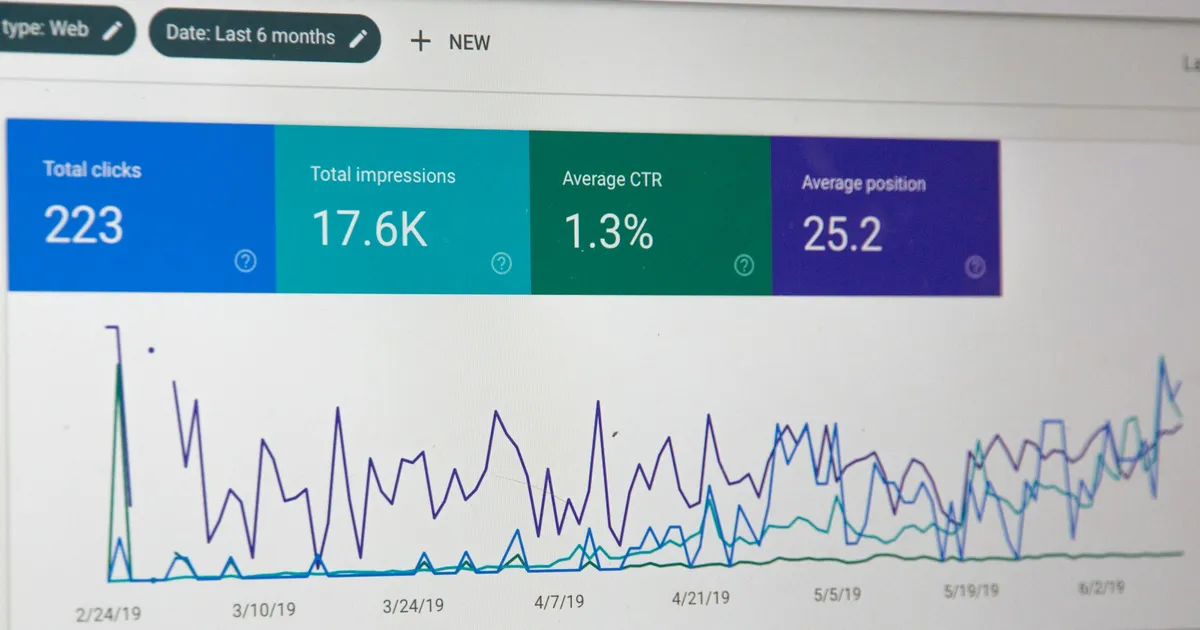
The final step is the easiest to forget. None of the above matters if you don’t tell Google (and Bing, and friends) that your site exists.
- Verify ownership in Google Search Console (DNS TXT or a meta tag).
- Submit your sitemap URL.
- Repeat for Bing Webmaster Tools — same sitemap.
- Check back after a few days for crawl errors, indexing status, and Core Web Vitals.
Search Console also surfaces structured data warnings, so it’s a great feedback loop for the JSON-LD work from steps 2 and 3.
Wrapping up
That’s the SEO baseline we apply to every Vendure storefront we build. The pattern is always the same: add the field in Vendure, expose it via GraphQL, render it in the storefront. Once meta tags, structured data, alt text, robots.txt and the sitemap are in place, you’ve covered the technical foundations and can shift focus to content and performance.